Connect Ciev in Claude
- Open claude.ai or the Claude desktop app.
- Go to Settings → Connectors and open the Discover section.
- Find Ciev and click Connect.
- A Ciev.ai sign-in window opens. Sign in with your Ciev account, review the access being requested, and click Allow.
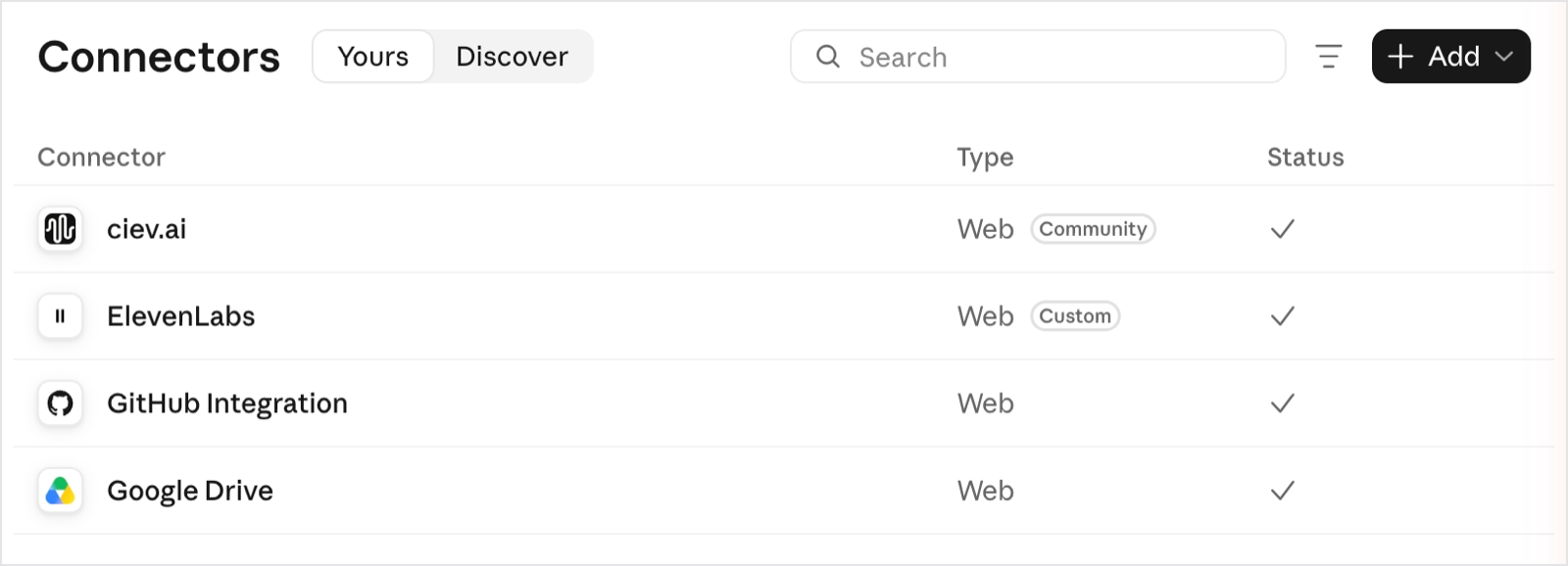
- You're returned to Claude, and Ciev shows as connected.
No API key, client ID or secret is involved. It's a normal OAuth sign-in, and you can disconnect from the same screen at any time.
On a Claude Team or Enterprise plan? An organization Owner has to enable the connector once under the Claude organization's settings. After that each member connects individually, from step 3 onward. On a Claude Free plan you get one connector, so make it count.
If Ciev isn't listed under Discover, add it as a custom connector instead:
Add custom connector, name it Ciev.ai, and use https://ciev.ai/mcp
as the URL, leaving the advanced settings empty.